In short
To export your MT5 trade history, open the Toolbox (Ctrl+T), History tab, show the Positions view over All History, then right-click, Report, Open XML (Excel) or HTML. Export positions, not deals: a partial close would count as two trades. Also check whether your broker charges commission as one daily or monthly balance line.
Key takeaways
- MetaTrader 5 exports your history from the History tab of the Toolbox: right-click, Report, then Open XML for Excel or HTML.
- Export the Positions view: the Deals view splits a single trade into several rows and distorts your trade count and your win rate.
- MT5 only includes a position if its open or close time falls inside the selected period: a position opened before and closed after vanishes from the report.
- Some brokers accumulate commission over the day or the month and charge it as a single balance line, invisible trade by trade.
- Times in the MT5 history are your broker's server time, in YYYY.MM.DD HH:MM format, not your computer's time.
You finally want to analyze your MetaTrader 5 trades. You export your MT5 trade history, open it in Excel, and nothing adds up: twice as many rows as trades, a win rate that makes no sense, a total that doesn’t match your balance.
The problem is almost never you. MT5 organizes your history differently from MT4, and the default export isn’t the one you need. This guide shows you what to export, how, and what to check before you draw a single conclusion.
How do you export your MT5 trade history to Excel in 6 steps?
You export your MT5 trade history from the History tab of the Toolbox: pick the Positions view and the period, then right-click, Report, and the Open XML format to get an Excel file.
- Open the Toolbox. View menu, then Toolbox, or the Ctrl+T shortcut.
- Click the History tab. That’s where the MetaQuotes help places the full account history and the tools to analyze it.
- Show the Positions view. Right-click in the list and choose Positions. This is the step that changes everything, the next section explains why.
- Pick the widest period. In the bar below the list, select All History, or a custom period that covers your whole trading period.
- Right-click, then Report. The submenu offers Open XML (MS Office Excel 2007) and HTML (Internet Explorer). The exact labels may vary slightly with your version.
- Choose Open XML and save the .xlsx file. Name it with your account number and the date, then open it to check that your trades are there.
The Open XML export has been around for a long time: the release notes for MetaTrader 5 build 281, published in 2010, already announced the account statement export in this Excel 2007 compatible format. No copy-pasting, no conversion.
Positions, deals or orders: which view should you export?
Export the Positions view. One row there is one complete trade, from open to close, while the Deals view splits each trade into several rows and the Orders view lists the requests you sent to your broker, filled or not.
This is the big difference from MetaTrader 4. According to the MetaQuotes help, MT5 can show the same history in four ways: a list of positions, a list of orders, a list of deals (the buys and sells actually executed) and a tree view showing how each request was processed.
| View | What one row represents | When to use it |
|---|---|---|
| Positions | A full trade: time of first and last deal, volume, average entry and exit price, total result | Analyzing your performance, computing win rate and profit factor |
| Deals | One execution: entry (in), exit (out) or reversal (in/out) | Checking a partial close or an exact fill price |
| Orders | One request sent to the broker, filled, canceled or expired | Finding a pending order that never triggered |
| Tree | The order, deals, position chain | Untangling a confusing case, not for analysis |
To build the Positions view, the MetaQuotes help says the platform combines all deals of one position (opening, added volume, partial and full closes) into a single record, with a weighted average open and close price and the total financial result.
Illustrative example on a dollar account: you buy 1.00 lot of EUR/USD at 1.0800 (100,000-unit contract). You close half at 1.0830, then the rest at 1.0780.
| View exported | Rows | Results read | What your spreadsheet concludes |
|---|---|---|---|
| Deals | 3 (1 entry, 2 exits) | 0, +$150, −$100 | 2 trades, 1 winner, 1 loser: 50% win rate |
| Positions | 1 | +$50 | 1 winning trade: 100% win rate |
Same trade, same money made. Only the exported view changes, and your win rate drops from 100% to 50%.
If you often scale out, the gap compounds over hundreds of trades. Our guide to the win rate shows why this number, computed wrong, sends you in the wrong direction.
Excel, HTML or PDF report: which one should you pick?
Pick Open XML if you want to analyze your trades, HTML if you want a page you can read in a browser. The newer trading report, exportable to HTML and PDF, is built to present statistics, not to give you one row per trade.
MT5 actually has two different reports. The first one comes from the History tab. According to the MetaQuotes help, it contains the account header, orders, deals, positions, working orders, a summary (balance, equity, margin) and a statistics block with a balance graph.
The second one is the newer trading report. The release notes for build 4150, published on January 18, 2024, say it can now be exported to HTML and PDF, from the File menu and the report menu. MetaQuotes presents it as a way to share your results, with growth, balance and equity charts.
| Format | Where it comes from | What you do with it |
|---|---|---|
| Open XML (.xlsx) | History tab, right-click, Report | Analysis in Excel, CSV export, import into a journal |
| HTML | History tab or trading report | Reading in a browser, readable archive |
| Trading report (build 4150 and later) | Sharing results, not row-by-row analysis |
If you open an HTML file in Excel, the same trap as on MT4 is waiting: MT5 writes decimals with a dot. If your Excel uses a comma, the Microsoft help explains how to untick “Use system separators” under File, Options, Advanced, and set the dot as decimal separator. If you come from MT4, our guide to export your MT4 history walks through it.
Why are trades missing from your MT5 export?
Trades go missing when a position straddles the edges of your period, when the period shown is too short, when you’re on the wrong view or the wrong account, or when the history hasn’t refreshed yet. Start by widening the period.
MT5’s rule isn’t MT4’s. The MetaQuotes help is precise: a position is included in the report only if its open date or its close date falls inside the selected period. A position opened before the start of the period and closed after its end doesn’t show up at all.
| What you see | Likely cause | What you do |
|---|---|---|
| Only the last few days or the last month | Short period selected below the list | Choose All History, then run Report again |
| A long swing trade has vanished | Opened before the period and closed after it | Widen the period on both ends |
| Twice as many rows as trades | Deals view exported | Switch back to the Positions view |
| Orders that never filled in the list | Orders view exported | Switch back to the Positions view |
| A trade you just closed is missing | History not refreshed yet | Switch period and come back, or wait a little |
| Nothing matches your balance | Another account connected (demo, other server) | Check the account number in the report header |
On that last point, keep one reflex: the history you see comes from your broker’s server. If older trades are missing even with a wide period, ask their support whether they archive old trades.
Commission and swap: why doesn’t your total match your balance?
Your total doesn’t match because the Profit column includes neither commission nor swap, and because some brokers don’t charge commission trade by trade: they accumulate it over the day or the month and withdraw it as a single balance line.
The second point is specific to MT5 and almost nobody mentions it. The MetaQuotes help states that the Commission column is only filled if commission is charged right after execution. It can also be accumulated over a day or a month, then withdrawn from the account in a single balance operation. In that case, it shows up on no trade at all.
Yet the first reflex when you clean your export is to delete balance rows to strip out deposits and withdrawals. You then delete your commission too.
Illustrative example: 20 positions in one month, 30 lots traded, $7 commission per lot charged at month end.
| Line | Amount |
|---|---|
| Sum of the Profit column (20 positions) | +$240 |
| Monthly commission, single balance line (30 × $7) | −$210 |
| Net result for the month | +$30 |
| Average result per trade, Profit column only | +$12 |
| Average result per trade, net | +$1.50 |
On paper, each trade makes you $12. In reality, it makes you $1.50, eight times less. A strategy that looks comfortable is close to break-even, and any widening of the spread would push it into a loss.
The rule: before you delete a balance row, read its comment. Set aside every one that isn’t a deposit or a withdrawal, and subtract it from your result. For commissions and swaps shown per trade, add a Net column equal to Profit + Commission + Fee + Swap.
The 5 checks before you analyze your MT5 history
A wrong export gives wrong conclusions. These five checks take two minutes and save you weeks of bad decisions.
- The view. Check that every row is a position: no row with an in or out direction, no canceled order.
- The dates. The first and last positions must cover your whole trading period. A first date that’s too recent means the period was set wrong.
- Balance rows. Separate deposits and withdrawals from accumulated commissions. The first leave the calculation, the second get subtracted from it.
- Server time. The MetaQuotes help states that execution time follows the broker’s server time zone, in YYYY.MM.DD HH:MM format. Work out the offset from your local time before you analyze results by hour or session.
- The balance reconciliation. Over the period, your net result plus deposits, minus withdrawals, must equal the change in your balance. A gap means a row is missing or was converted wrong.
Also keep the original file of every export. It becomes your raw record, and the base of a trading journal you can keep over time.
What should you look at first in the report statistics?
Start with profit factor, maximal drawdown and the share of winning trades. Good news: in the History tab report, MT5 computes these statistics after commission, fees and swap for each deal.
The MetaQuotes help spells it out for gross profit and gross loss: for each deal, the result is profit minus commission, fees and swap. A deal counts as a winner if that total is positive. So the report’s profit factor is more honest than the one you would compute on the Profit column alone. It does not, however, see a commission accumulated and charged as a balance line.
| MT5 label | What it measures | Go further |
|---|---|---|
| Profit Factor | Gross profit divided by gross loss | Profit factor |
| Balance Drawdown Maximal | Largest balance drop from a local high, in money and % | Drawdown |
| Profit Trades (% of total) | Number and share of winning trades | Win rate |
| Short Trades and Long Trades (won %) | Results split between sells and buys | Spot a direction that costs you |
| Expected Payoff | Average result per trade | Compare with your average commission |
| Maximum consecutive losses | Longest losing streak and its amount | Size your capital cushion |
These numbers cover the whole exported period in one block. They don’t tell you which hours, days or symbols cost you the most. For that, you need to slice your history.
Importing your MT5 history into TradeIA
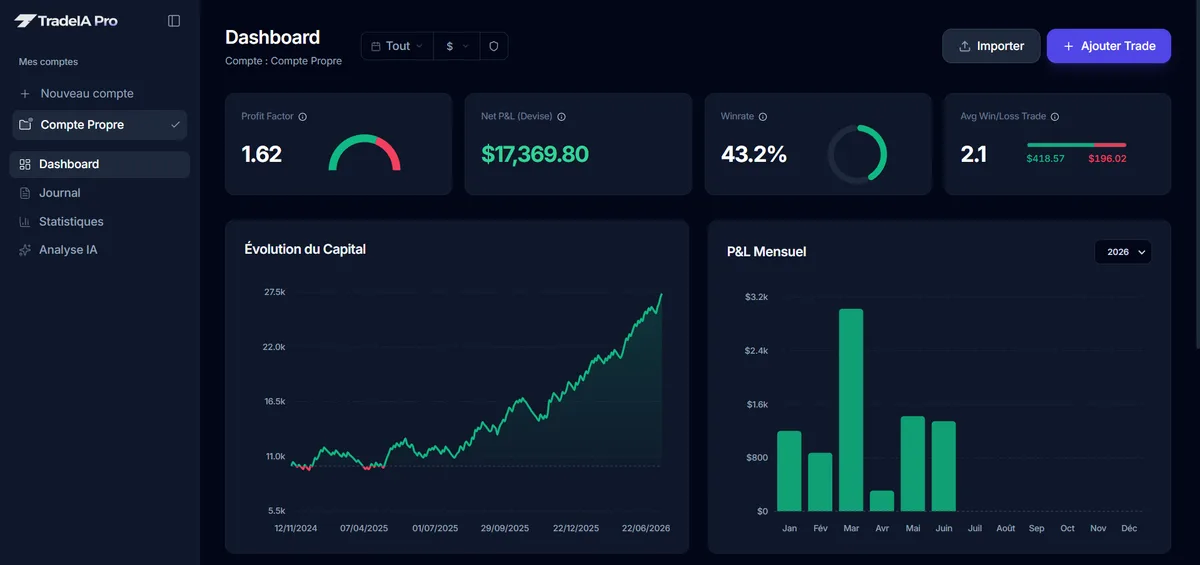
TradeIA reads the .xlsx file exported from MetaTrader 5 in Open XML format directly. The import looks for the positions table, ignores balance rows and flags trades you already imported to avoid duplicates.
When a stop loss is recorded, TradeIA computes the initial risk and the R result of each position. The amount imported for each trade is the one in the Profit column: commission and swap are not carried over, so keep in mind the gap you saw above. MT5 HTML and PDF exports are not read. Your history is then sliced by day, hour and symbol, and the analysis flags, for example, losing streaks during which your position size goes up.
Frequently asked questions
05How do I export my MT5 trade history to CSV?
The Report menu of the History tab has no CSV option. Choose Open XML to get an Excel workbook, open it, keep only the positions table and save it as CSV. Keep the original file next to it as your raw record.
Can I export my history from MT5 on my phone?
The MetaQuotes help for the Android and iPhone apps covers viewing your history and choosing the period, but no report export command. Log in to the same account from MT5 on a computer, or download a statement from your broker's client area.
Why does my MT5 export show twice as many trades as expected?
You most likely exported the Deals view. Each position shows up at least twice there: one entry deal and one or more exit deals. Switch back to the Positions view before clicking Report, and one row will equal one trade.
What time zone are the dates in the MT5 history?
Your broker's trading server time. The MetaQuotes help states that execution time follows the server's time zone, in YYYY.MM.DD HH:MM format. Compare the terminal clock with your local time to find the offset before you analyze trades by hour.
Does the MT5 report include commission and swap?
Yes, in columns separate from Profit, when your broker charges them per trade. If commission is accumulated over the day or the month, it only shows up as a balance line. Add up the columns and those lines before you compute your net result.
Sources
06- MetaQuotes, MetaTrader 5 Help: Trading Account History
- MetaQuotes, MetaTrader 5 Help: Trading Report
- MetaQuotes, MetaTrader 5 build 281: report export in Open XML format (2010)
- MetaQuotes, MetaTrader 5 build 4150: trading report export to HTML and PDF (2024)
- MetaQuotes, MetaTrader 5 Android Help: History
- Microsoft Support, Change the character used to separate thousands or decimals
Educational content. It does not constitute investment advice. Trading leveraged products carries a high risk of losing your capital.