In short
To export your MT4 trade history, open the Terminal (Ctrl+T), go to the Account History tab, right-click All History, then Save as Detailed Report: you get an HTML file. Excel opens it and saves it as CSV. Before analysing, add commission, swap and profit together: the Profit column alone is not your net result.
Key takeaways
- MetaTrader 4 exports your history only as HTML, through a right-click in the Account History tab then Save as Report or Save as Detailed Report.
- The report only exports the period on screen: select All History before saving, or trades will be missing.
- MT4 filters history by close time: a trade opened on the 31st and closed on the 1st shows up in the following month.
- Commission, taxes and swap sit in columns separate from profit: add all four to get your net result per trade.
- Report times are your broker's server time, not your computer's: account for it before analysing your trades by hour.
You want to analyse your trades, and the first step already stops you: MetaTrader 4 has no “Export to Excel” button. You save a report, open it, and half your trades are missing. Or the numbers don’t match your balance.
This guide shows you how to export your full MT4 trade history, pick the right report, open it in Excel or as CSV, and check it is correct before you draw any conclusion from it. Trading on MetaTrader 5? The logic is different, follow our guide to export your MT5 trade history instead.
How do you export your MT4 trade history in 6 steps?
You export MT4 history from the Terminal’s Account History tab: right-click, All History, then Save as Detailed Report. MetaTrader 4 creates an HTML file that you save on your computer.
- Open the Terminal. View menu, then Terminal, or the Ctrl+T shortcut.
- Click the Account History tab.
- Right-click in the list and choose All History. This is the step everyone forgets.
- Right-click again and choose Save as Detailed Report.
- Pick a folder and keep the .htm extension. Name the file with your account number and the date so you can find it later.
- Open the file in your browser to check it really contains your trades before going further.
According to the official MetaQuotes documentation, the tab’s right-click menu offers four periods: All History, Last 3 Months, Last Month and Custom Period. The report only exports what the tab shows. If you stay on Last Month, your file will only contain the last month.
Simple report or detailed report: which one should you pick?
Pick the detailed report. MetaQuotes says it differs from the simple report by an additional set of parameters: you get everything the simple report has, plus what you need to check your own numbers.
According to the MetaQuotes help, both reports are saved as HTML. The top of the page holds the account information, then trades are split into three blocks: closed trades (Closed Transactions), open positions (Open Trades) and pending orders (Working Orders). The documentation then describes an account summary, a balance chart and a statistics block.
| Report section | What you find there | What it’s for |
|---|---|---|
| Header | General account information | Checking it’s the right account |
| Closed Transactions | Ticket, times, type, lots, symbol, prices, S/L, T/P, commission, taxes, swap, profit | The raw material of your analysis |
| Open Trades and Working Orders | Positions still open and pending orders | Analyse separately, no final result yet |
| Summary | Deposits and withdrawals, closed trade result, balance, equity | Reconciling your figures with your balance |
| Statistics | Profit factor, expected payoff, drawdowns, winning and losing streaks | A check on your own calculations |
MetaQuotes does not publish the exact list of fields reserved for the detailed report, and the number of columns shown depends on the type chosen. Take the detailed one: you lose nothing.
Why are trades missing from your export?
Trades go missing when the period on screen is too short, when a trade was closed outside that period, when your broker has archived your old trades, or when you are not on the right account. Start with the period: it is the simplest cause to fix.
| What you see | Likely cause | What you do |
|---|---|---|
| Only the last month | Last Month or Last 3 Months selected | Right-click, All History, then save again |
| A trade opened at month end is missing | MT4 filters by close time | Widen the period by a day or two |
| Old trades have disappeared | Archiving on the broker’s side | Ask support for the archived history |
| Running trades are missing | They sit in Open Trades, not Closed Transactions | Wait until they close or analyse them separately |
| Nothing matches your balance | You are logged in to another account (demo, other server) | Check the account number at the top of the report |
MetaQuotes documents the close-time filter: for each period, order history is requested by close time. A trade opened on 31 March and closed on 1 April does not appear in a March report.
Archiving depends on the broker. Vantage, for instance, says history on its MT4 Cent accounts is archived automatically every 14 days for closed trades, and that you need to ask its support for archived trades. If your history has unexplained gaps, ask your broker.
How do you open your MT4 history in Excel or as CSV?
Open the .htm file directly in Excel with File, Open, showing all file types. Excel reads the HTML table and turns it into a spreadsheet that you can then save as .xlsx or .csv.
- Open the file in Excel. In the open dialog, choose “All files” to see the .htm.
- Check the numbers. MT4 writes decimals with a dot (1.08452). If your Excel uses a comma as the decimal separator (common in Europe), some prices stay as text or turn into dates.
- Fix the separator if needed. According to Microsoft’s help, go to File, Options, Advanced, clear “Use system separators” and set the dot as the decimal separator. Then reopen the file.
- Delete rows that are not trades. Keep only buy and sell rows. Balance rows are deposits and withdrawals, and broker comments sometimes take a row of their own.
- Add a Net column equal to Commission + Taxes + Swap + Profit for each trade (see the next section).
- Save as CSV if you want to import the file into another tool. Keep a copy of the original .htm: it is your raw record.
Dates use the YYYY.MM.DD HH:MM format, according to the MetaQuotes documentation. To sort or group them by day, replace the dots with slashes (Find and Replace) and Excel will recognise them as dates.
Profit, commission, swap: what is your real result?
Your real result per trade is the sum of the Commission, Taxes, Swap and Profit columns. The Profit column alone leaves out those costs, which can turn a losing strategy into a winning one on paper.
The MetaQuotes help describes these columns separately: Commission for the broker’s commissions, Taxes for taxes, Swap for swaps, Profit for the financial result of the transaction. If you only look at the last one, you forget what your broker actually charged you.
Illustrative example over 6 trades, with a commission of €7 per lot:
| Trade | Lots | Commission | Swap | Profit | Net |
|---|---|---|---|---|---|
| 1 | 1.00 | −€7.00 | €0.00 | +€85.00 | +€78.00 |
| 2 | 0.50 | −€3.50 | −€1.20 | −€40.00 | −€44.70 |
| 3 | 1.00 | −€7.00 | −€4.80 | +€62.00 | +€50.20 |
| 4 | 2.00 | −€14.00 | €0.00 | −€95.00 | −€109.00 |
| 5 | 1.00 | −€7.00 | +€1.10 | +€30.00 | +€24.10 |
| 6 | 0.50 | −€3.50 | €0.00 | −€25.00 | −€28.50 |
| Total | 6.00 | −€42.00 | −€4.90 | +€17.00 | −€29.90 |
On the Profit column, these six trades make €17. Net, they lose almost €30.
The profit factor flips too. Calculated on the Profit column, it is 177 ÷ 160 = 1.11. Calculated net, it drops to 152.30 ÷ 182.20 = 0.84, below the threshold of 1 that separates a winning strategy from a losing one. To understand that threshold, read our guide to the profit factor.
Simple rule: every statistic you calculate (win rate, profit factor, average win) uses the Net column, never the Profit column.
The 5 checks to run before analysing your export
A wrong export gives wrong conclusions. Take two minutes for these five checks before you calculate anything.
- The number of trades. Count the buy and sell rows. The figure must match the total trades shown in the detailed report’s statistics.
- The first and last date. They must cover your whole trading period. A recent first date points to a wrong period or to archiving.
- Balance rows. Remove them from the calculation: a €1,000 deposit counted as a winning trade skews your win rate and profit factor.
- Server time. The MQL4 documentation states that order opening and closing are timed in the broker’s server time, not your computer’s. Work out the offset with your local time before analysing results by hour or session.
- The net total. Over the period, the sum of your Net column plus deposits, minus withdrawals, must equal the change in your balance. A gap means a row is missing or was converted badly.
Also keep a copy of every export. MT4 does not create this report on its own, you are the one who saves it: if your broker archives your old trades, your file will be the only complete record. An up-to-date trading journal solves this once and for all.
What should you look at first in your detailed report?
Start with three numbers: profit factor, maximal drawdown and the share of winning trades. Together, they tell you whether your strategy wins, how much pain it causes and whether your results hang on a few big trades.
According to the MetaQuotes help, the detailed report’s statistics block includes:
| MT4 label | What it measures | Going further |
|---|---|---|
| Profit Factor | Gross profit divided by gross loss | Profit factor |
| Maximal Drawdown | Largest fall from a peak, in money and % | Drawdown |
| Profit Trades (% of total) | Number and share of winning trades | Win rate |
| Expected Payoff | Average result per trade | Compared with your average costs |
| Average profit trade / Average loss trade | Average win and average loss | Realised win/loss ratio |
| Maximum consecutive losses | Longest losing streak and its amount | Size of your capital cushion |
MT4 calculates these statistics over the whole exported period. They don’t tell you which days, hours or symbols cost you the most: for that, you need to slice your history, by hand in Excel or with a tool.
Importing your MT4 report into TradeIA
TradeIA reads the .htm or .html file saved from MetaTrader 4 directly: no Excel or CSV conversion needed. The import keeps only closed buy and sell trades, ignores deposit and withdrawal rows, and spots trades already imported to avoid duplicates.
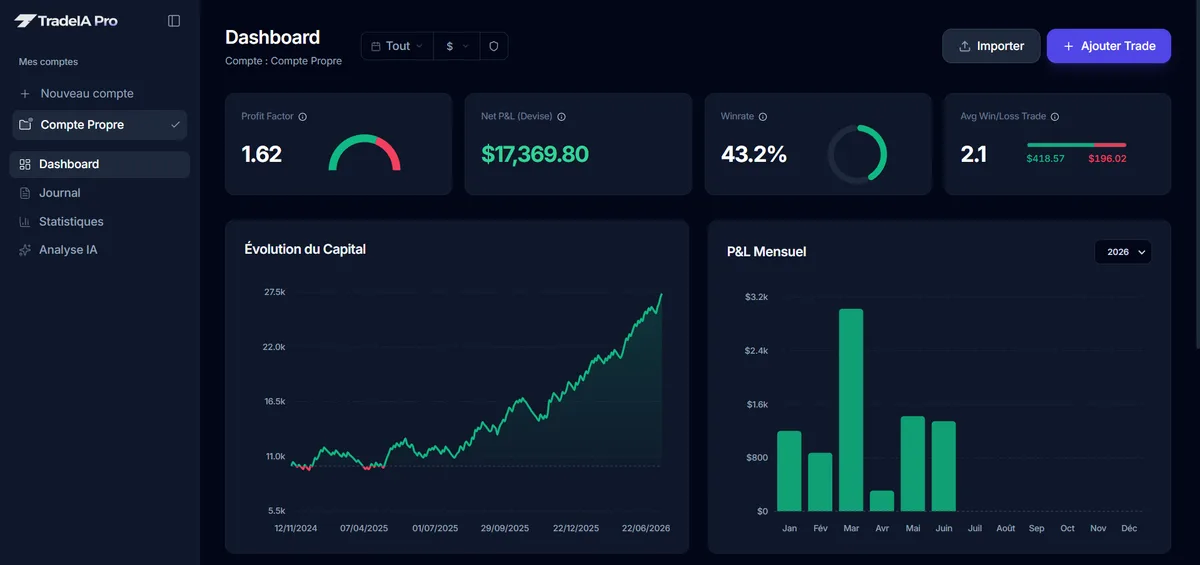
When a stop loss is set in your history, TradeIA calculates the initial risk and the R result of each trade. The amount imported for each trade is the report’s Profit column: if your broker charges a commission, keep in mind the gap you saw above. Your history is then sliced by day, hour and symbol, and the analysis flags, for example, losing streaks during which your position size increases.
Frequently asked questions
05How do I export MT4 history to Excel?
MT4 has no direct Excel export. Save your history with Save as Detailed Report, then open the .htm file in Excel with File, Open. Once the table shows, save it as .xlsx or .csv.
Why does my MT4 history only show the last month?
The Account History tab shows the period picked in its right-click menu. Right-click and choose All History before saving the report. If old trades are still missing, your broker may have archived them: ask its support team.
Can I export history from the MT4 mobile app?
The Save as Report commands are documented in the MT4 desktop terminal. If you trade on mobile, log in to the same account from MT4 on a computer, or download a statement from your broker's client area.
Does the MT4 report include commissions and swap?
Yes, in separate columns: Commission, Taxes, Swap and Profit. The Profit column alone is not your net result. Add the four columns for each trade before you calculate your win rate or profit factor.
Which time zone are MT4 report dates in?
Your broker's server time. The MQL4 documentation states that order opening and closing are timed according to server time. Compare the terminal clock to your local time to find the offset.
Sources
04Educational content. It does not constitute investment advice. Trading leveraged products carries a high risk of losing your capital.